
The growing use of digital documents has made online OCR tools an essential part of modern workflows. Businesses, students, researchers, and professionals rely on online OCR technology to convert scanned documents, images, and PDFs into editable text.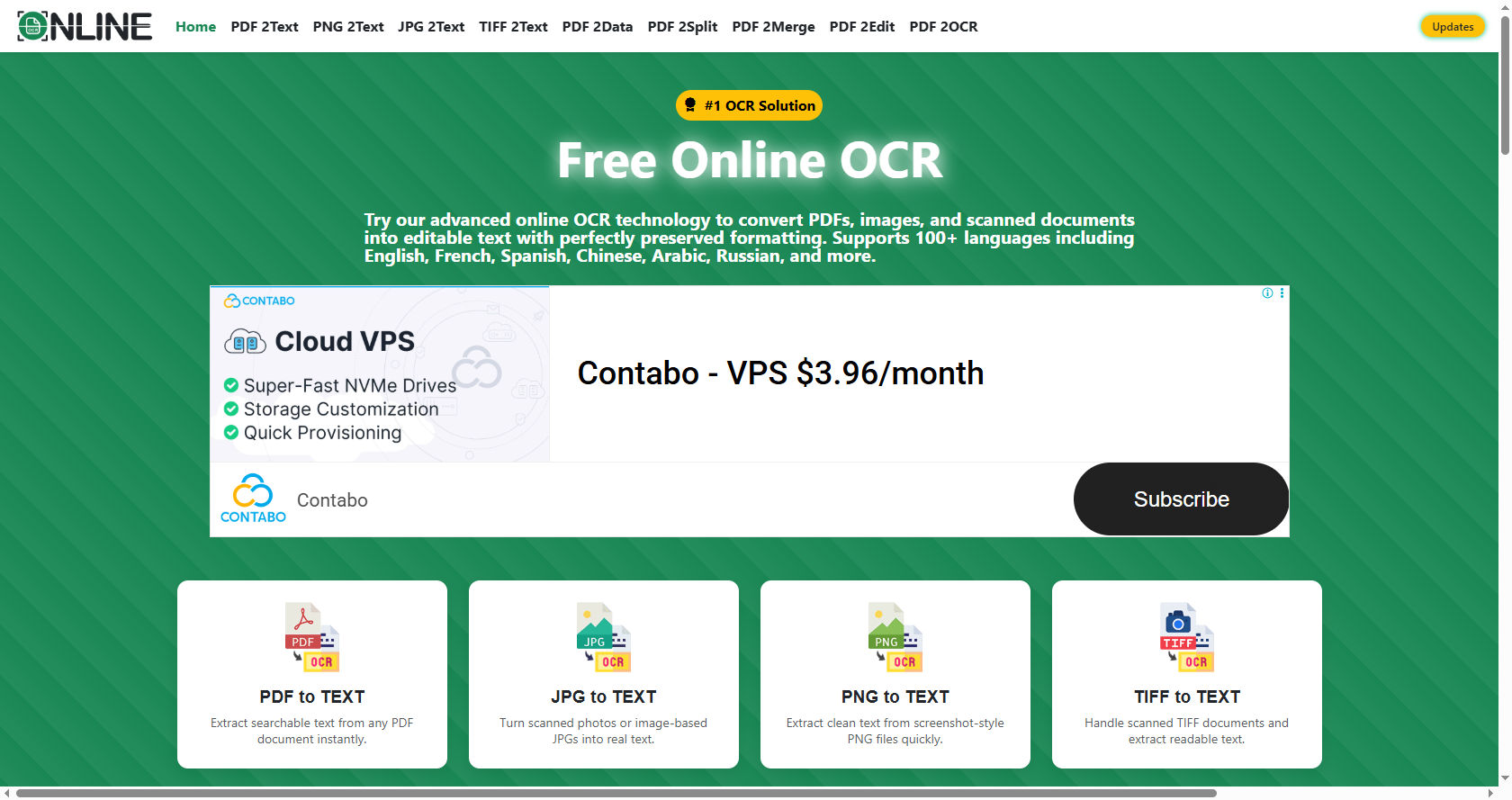
However, many users become frustrated when an OCR document converter fails to recognize text accurately or does not read the text at all.If you have ever uploaded a document to an online OCR platform and received incomplete, incorrect, or unreadable results, you are not alone. OCR technology is powerful, but it is not perfect.
Several factors can affect recognition accuracy, including image quality, document formatting, font styles, and language settings.This comprehensive guide explains why an OCR document converter may not be reading text properly, the most common causes of OCR errors, and practical solutions to improve results. By understanding how online OCR works and what influences its performance, users can achieve more accurate text extraction and save valuable time.
What Is OCR?
OCR stands for Optical Character Recognition. It is a technology that identifies characters from images, scanned documents, PDFs, and photographs and converts them into machine-readable text.
An online OCR system analyzes visual patterns within a document and matches them to letters, numbers, and symbols. The extracted content can then be edited, searched, copied, or stored digitally.
OCR technology is widely used for:
-
Digitizing printed books
-
Converting paper documents into editable files
-
Extracting information from invoices
-
Processing forms and contracts
-
Archiving historical documents
-
Making scanned content searchable
Although modern online OCR tools have become increasingly advanced, certain document conditions can still prevent accurate recognition.
How OCR Document Converters Read Text
Before understanding why OCR fails, it is important to know how the process works.
Image Processing
The OCR system first analyzes the uploaded image or document. It attempts to improve visibility by adjusting contrast, brightness, and sharpness.
Character Detection
The software identifies shapes that resemble letters, numbers, and symbols.
Pattern Recognition
The OCR engine compares detected characters against its language and character databases.
Text Conversion
The recognized text is converted into editable digital content.
Output Generation
The extracted text is presented in formats such as TXT, DOCX, PDF, or searchable documents.
Any issue during these stages can reduce the effectiveness of an online OCR converter.
Common Reasons OCR Document Converter Is Not Reading Text
Poor Image Quality
One of the most common reasons OCR fails is poor image quality.
If the scanned image is blurry, pixelated, or distorted, the OCR engine may struggle to recognize characters correctly.
Common image quality problems include:
-
Low resolution
-
Motion blur
-
Poor focus
-
Compression artifacts
-
Distorted scans
The better the image quality, the better the performance of online OCR systems.
Low Resolution Documents
OCR software requires clear character boundaries to recognize text accurately.
Images with low resolution often contain insufficient detail, making letters difficult to distinguish.
For best results:
-
Use at least 300 DPI scans
-
Avoid screenshots with low quality
-
Upload high-resolution files whenever possible
Many online OCR errors occur simply because the source image lacks sufficient clarity.
Blurry Text
Blurred text is another major obstacle.
Blur can result from:
-
Camera movement
-
Poor scanning equipment
-
Out-of-focus photography
-
Digital image degradation
When characters appear fuzzy, OCR software may confuse similar letters such as:
-
O and 0
-
I and l
-
B and 8
-
S and 5
This significantly reduces online OCR accuracy.
Poor Lighting Conditions
Documents photographed in poor lighting often contain shadows and uneven brightness.
These issues can hide portions of characters and interfere with OCR recognition.
Common lighting problems include:
-
Dark environments
-
Strong shadows
-
Overexposure
-
Reflection from glossy paper
Good lighting improves the effectiveness of online OCR text extraction.
Skewed or Rotated Documents
OCR engines work best when text appears horizontally aligned.
Documents that are tilted, rotated, or scanned at odd angles can create recognition errors.
Even slight misalignment can affect character detection.
Many modern online OCR solutions automatically correct orientation, but severe skewing can still cause problems.
Handwritten Text Challenges
Handwriting remains one of the most difficult tasks for OCR technology.
Unlike printed text, handwriting varies significantly between individuals.
Challenges include:
-
Different writing styles
-
Connected letters
-
Inconsistent spacing
-
Cursive writing
-
Unclear strokes
Although advanced online OCR platforms use artificial intelligence to recognize handwriting, accuracy may still vary considerably.
Complex Document Layouts
Multi-Column Documents
Documents with multiple columns can confuse OCR systems.
The software may read content in the wrong order or merge text from different sections.
Examples include:
-
Newspapers
-
Magazines
-
Research journals
Advanced online OCR tools often provide layout detection features to handle such formats.
Tables and Forms
Tables contain structured data that may not follow normal reading patterns.
OCR software sometimes:
-
Skips cells
-
Combines rows
-
Misplaces information
This is especially common when extracting data using basic online OCR applications.
Mixed Content Documents
Documents containing text, graphics, charts, and images present additional challenges.
The OCR engine must separate text from non-text elements before recognition begins.
Incorrect separation often leads to missing or inaccurate text extraction.
Font-Related Problems
Decorative Fonts
Fancy or decorative fonts may not match the OCR engine's character database.
As a result, characters can be misinterpreted.
Examples include:
-
Script fonts
-
Artistic fonts
-
Calligraphy styles
Simple fonts generally perform better in online OCR systems.
Small Font Sizes
Very small text contains limited visual detail.
OCR software may struggle to distinguish individual letters, especially in scanned documents.
Increasing scan resolution can improve recognition accuracy.
Unusual Character Spacing
Text with irregular spacing can confuse OCR engines.
Characters may be:
-
Joined together
-
Separated too widely
-
Misaligned
Such formatting issues often affect online OCR performance.
Language Recognition Issues
Wrong Language Selection
Many OCR tools require users to select the document language.
If the wrong language is chosen, recognition accuracy may drop significantly.
For example:
-
English text processed as French
-
Spanish text processed as German
Language settings are crucial for successful online OCR extraction.
Multilingual Documents
Documents containing multiple languages present additional challenges.
The OCR system must identify language changes throughout the document.
Some advanced online OCR solutions support multilingual recognition, while others perform best with a single language.
Image Background Problems
Busy Backgrounds
Text placed over complex backgrounds is harder to recognize.
Examples include:
-
Watermarks
-
Patterns
-
Colored textures
-
Photographic backgrounds
OCR engines may struggle to isolate text from surrounding visual elements.
Low Contrast
Text recognition depends heavily on contrast.
When text color closely matches the background color, character detection becomes difficult.
Examples include:
-
Light gray text on white paper
-
Dark blue text on black backgrounds
Increasing contrast can improve online OCR results significantly.
Damaged Documents
Torn Pages
Physical damage can remove portions of characters.
Missing text fragments make recognition more difficult.
Stains and Marks
Coffee stains, ink spots, and paper discoloration can interfere with OCR processing.
The software may interpret stains as characters or ignore actual text.
Faded Printing
Old documents often contain faded text.
Weak character visibility reduces OCR accuracy and increases recognition errors.
Many online OCR tools include enhancement features to improve faded documents.
Scanning Errors
Incomplete Scans
Sometimes portions of a document are cut off during scanning.
Missing sections naturally cannot be recognized.
Always verify that the entire page is visible before uploading to an online OCR platform.
Scanner Noise
Dust, scratches, and scanning artifacts introduce unwanted visual elements.
OCR software may mistake these marks for letters or symbols.
Regular scanner maintenance helps improve document quality.
PDF-Specific Issues
Image-Based PDFs
Some PDFs contain scanned images rather than actual text.
These files require OCR processing before text becomes searchable.
Protected PDFs
Security restrictions can limit OCR functionality.
Password-protected files may prevent text extraction until permissions are removed.
Poor PDF Conversion
Improper PDF creation can reduce image quality and negatively impact OCR accuracy.
Using high-quality PDF generation methods supports better online OCR performance.
OCR Software Limitations
Older OCR Engines
Not all OCR tools use modern technology.
Older systems may struggle with:
-
Complex layouts
-
Handwriting
-
Multiple languages
-
Low-quality images
Upgrading to a modern online OCR platform often improves results.
Limited AI Capabilities
Artificial intelligence has greatly improved OCR performance.
However, some tools still rely on traditional pattern matching methods that are less accurate in challenging situations.
How to Improve OCR Accuracy
Use High-Resolution Scans
A resolution of 300 DPI or higher provides better character detail.
This is one of the easiest ways to improve online OCR results.
Ensure Proper Lighting
When photographing documents:
-
Use bright lighting
-
Avoid shadows
-
Eliminate glare
-
Keep pages flat
Clear images help OCR engines detect text more accurately.
Straighten Documents
Before uploading files:
-
Align pages properly
-
Remove rotation
-
Correct skewed angles
Most online OCR tools perform best with straight text.
Clean Up Images
Image editing software can improve OCR results through:
-
Contrast enhancement
-
Noise reduction
-
Sharpening
-
Background removal
Preprocessing often increases recognition accuracy.
Choose the Correct Language
Always select the language used in the document.
Proper language settings enable online OCR engines to interpret words more accurately.
Use Advanced OCR Tools
Modern OCR platforms include features such as:
-
AI-based recognition
-
Handwriting support
-
Layout analysis
-
Automatic image enhancement
These capabilities help reduce recognition errors.
Best Practices for OCR Success
Scan Documents Carefully
Create clean, high-quality scans whenever possible.
Avoid Excessive Compression
Highly compressed images lose important visual details.
Keep Documents Flat
Wrinkled pages create distortions that affect OCR recognition.
Verify Results
Always review extracted text for errors before using it.
Process Documents in Batches
Large collections should be organized and scanned consistently for better OCR performance.
Signs That OCR Is Working Correctly
A successful OCR process typically produces:
-
Accurate text recognition
-
Proper formatting
-
Correct word order
-
Searchable content
-
Minimal editing requirements
When these conditions are met, your online OCR workflow becomes faster and more reliable.
Future Improvements in OCR Technology
OCR technology continues to evolve rapidly.
Artificial intelligence and machine learning are improving the ability of online OCR systems to handle:
-
Handwritten documents
-
Historical records
-
Complex layouts
-
Multiple languages
-
Poor-quality images
Future OCR solutions will likely deliver even higher accuracy levels while requiring less manual correction.
Conclusion
OCR technology has transformed the way people convert printed and scanned documents into editable digital text. However, when an OCR document converter fails to read text correctly, the cause is usually related to image quality, document layout, font complexity, language settings, scanning errors, or software limitations.
Most OCR problems can be solved by improving scan quality, using higher-resolution images, selecting the correct language, ensuring proper document alignment, and choosing a reliable online OCR platform. Understanding these factors helps users identify the source of recognition errors and take appropriate corrective action.
As OCR technology continues to advance through artificial intelligence and machine learning, modern online OCR systems are becoming increasingly capable of handling difficult documents. By following the best practices outlined in this guide, users can significantly improve text extraction accuracy and maximize the benefits of OCR technology in both personal and professional settings.